Connect your Android device to your OR equipment (or monitor or video source)
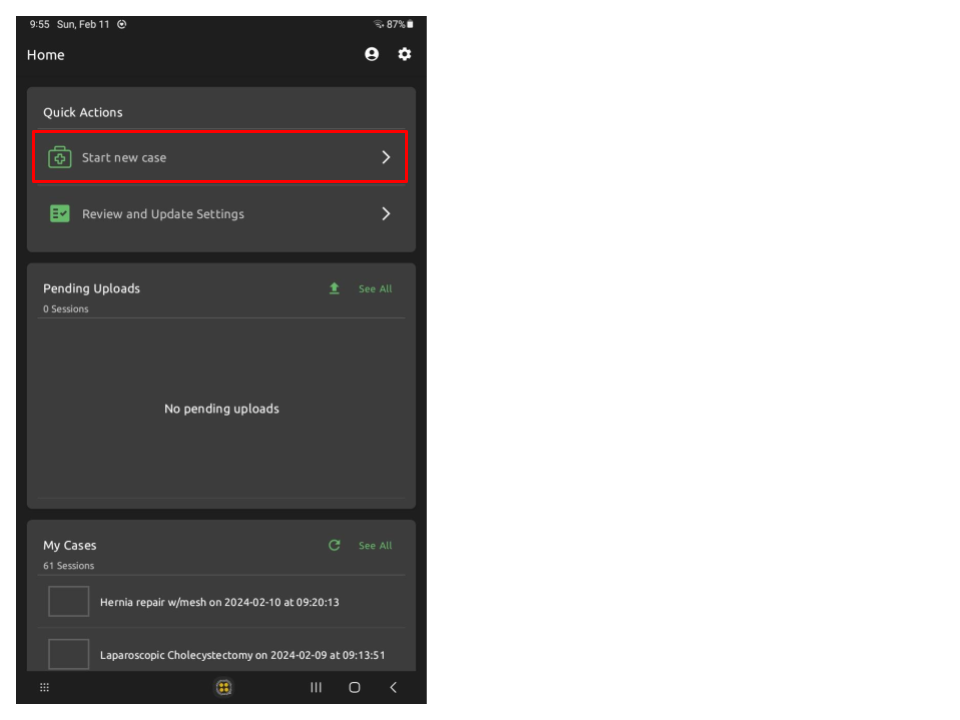
Click on “Start a New case”
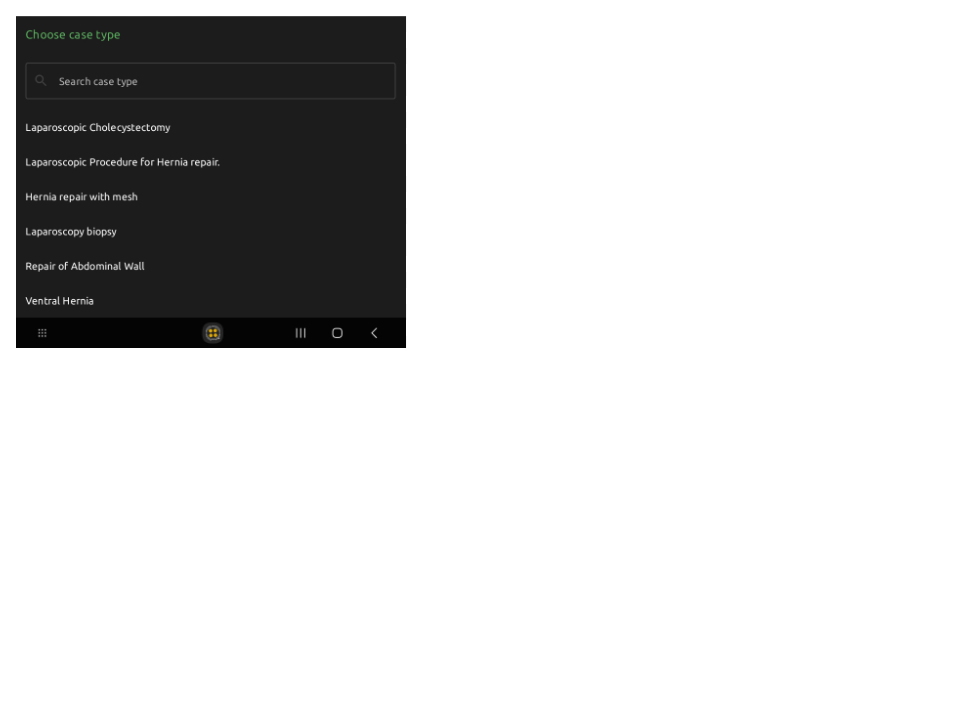
Select the case type from next screen, you can start typing the name & MediX will show case types matching. If you don’t find the case type in the list, you can still enter it manually to select. MediX will remember that case type for future use.
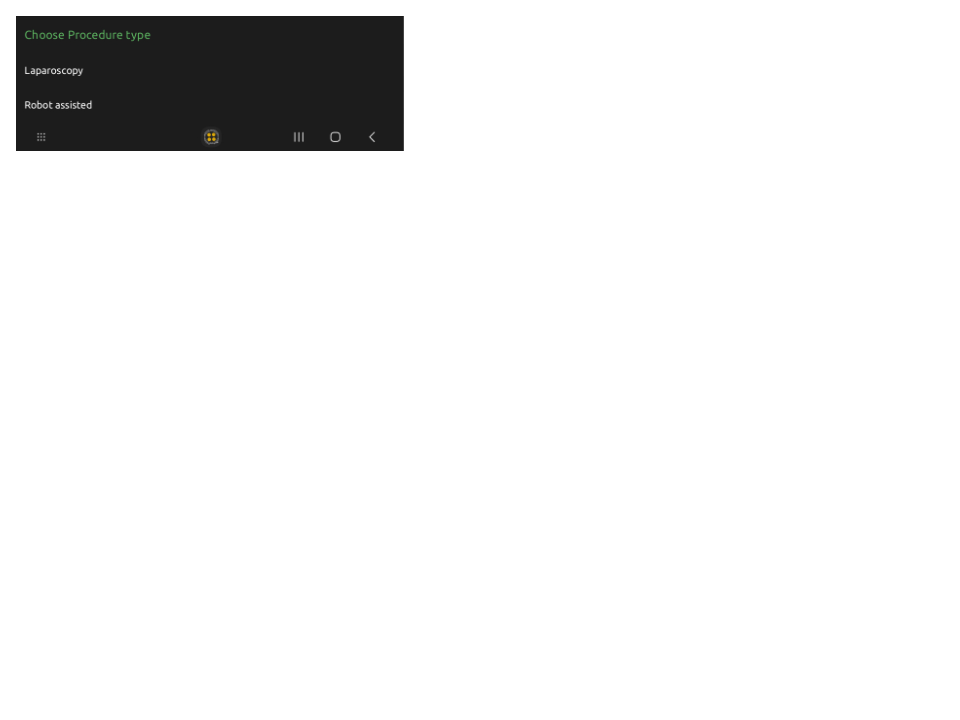
Select the “Procedure Type” - either Laparoscopic or Robotic. We ask for this distinction as you can specific evaluation criteria for each type later on.
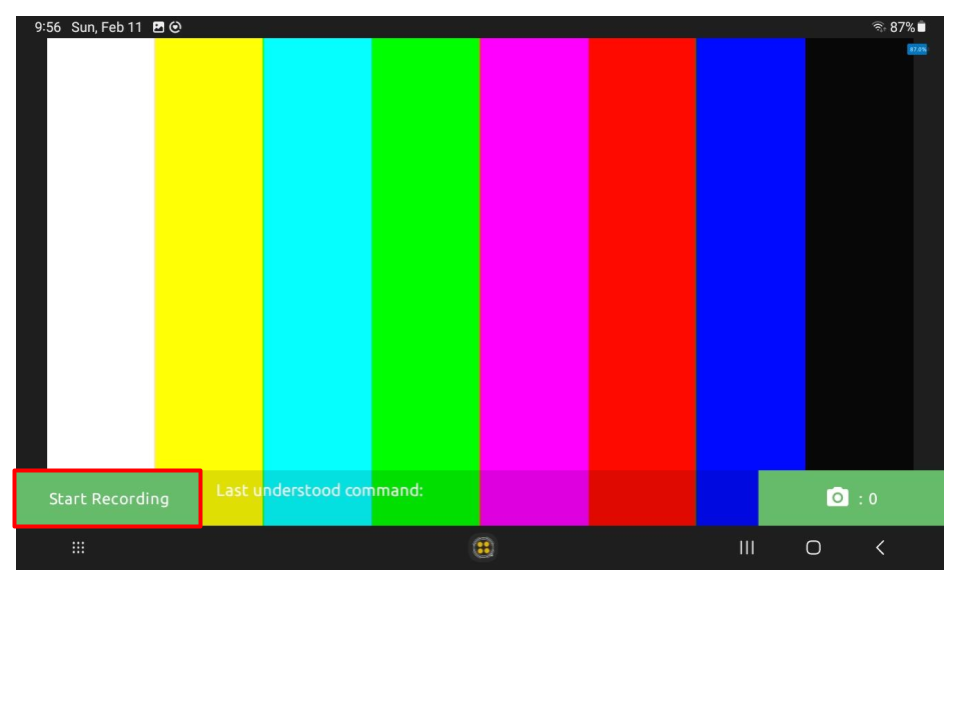
On next screen, you’ll see the video feed replicated, you are ready to record a case either by click on “Start Recording” button, or simply saying “medics start” (or “medix record”)
MediX will record the feed until you either click “Stop Recording” button or issue a voice command “medics stop”
If you’d like to take a picture at any point in time, you can use the “Snap” button (‘Camera’ icon on the right hand side) or issue voice command “medics snap”. MediX will remember the timestamp you issued command at and you can review those pictures later. MediX also buids an automated summary video using the snap timestamps by creating a slice video of 3 seconds before & 2 seconds after the time stamp and later stiching all the slices together.
Once the recording ends, based on your setting, MediX will automatically upload your case recording and relevant metadata to Instrumentor cloud. The upload times will vary based on how long the case was and how fast your internet connection is. MediX will keep on uploading the recording in background - even if it takes several minutes.