Configure your own Android Device for using with MediX
You can use any Android device (OS Level > 11) to install and use MediX. There are 2 pre-requisite steps involved in configuring your device.
Allow APK install from unknown sources (Step 1/2)
MediX is not (yet) available on any commerical playstores. So you will be downloading the MediX software from Instrumentor site. You need to tell you Android device it is ok to install MediX from non play store locations. These instructions assume a Samsun device, if you are using a different device - please search internet on how to accomplish this.
- Navigate to “Settings”
- Search for “Install Unknown Apps” in the search bar for settings: This will result in 2 search entries, we are interested in “Special Access” section
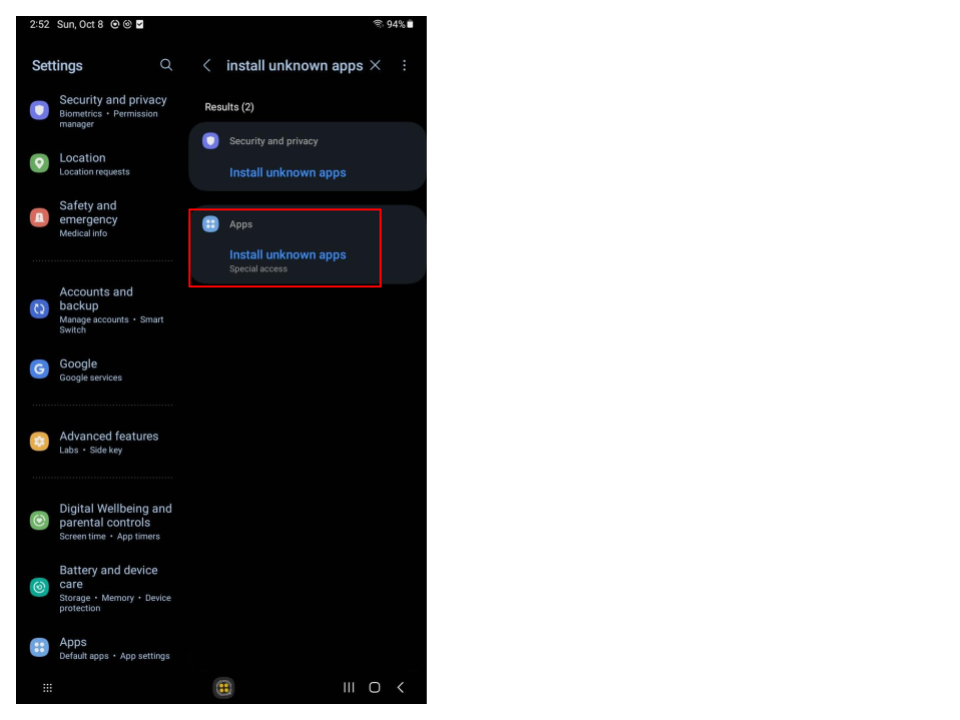
- Select “Install Unknown Apps” from “Specical Access” section:
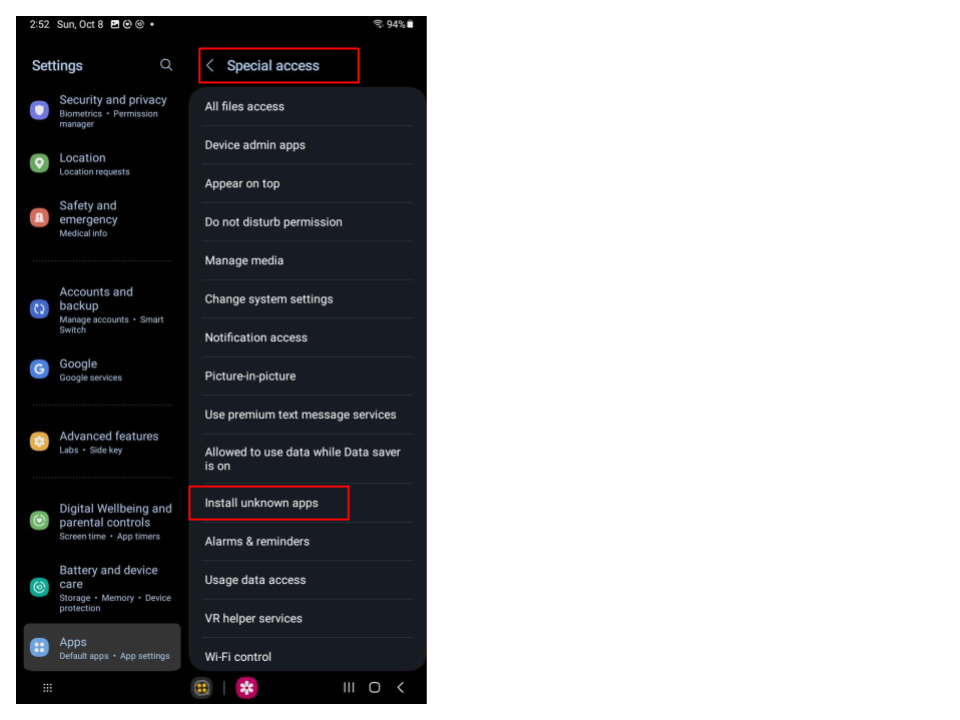
-
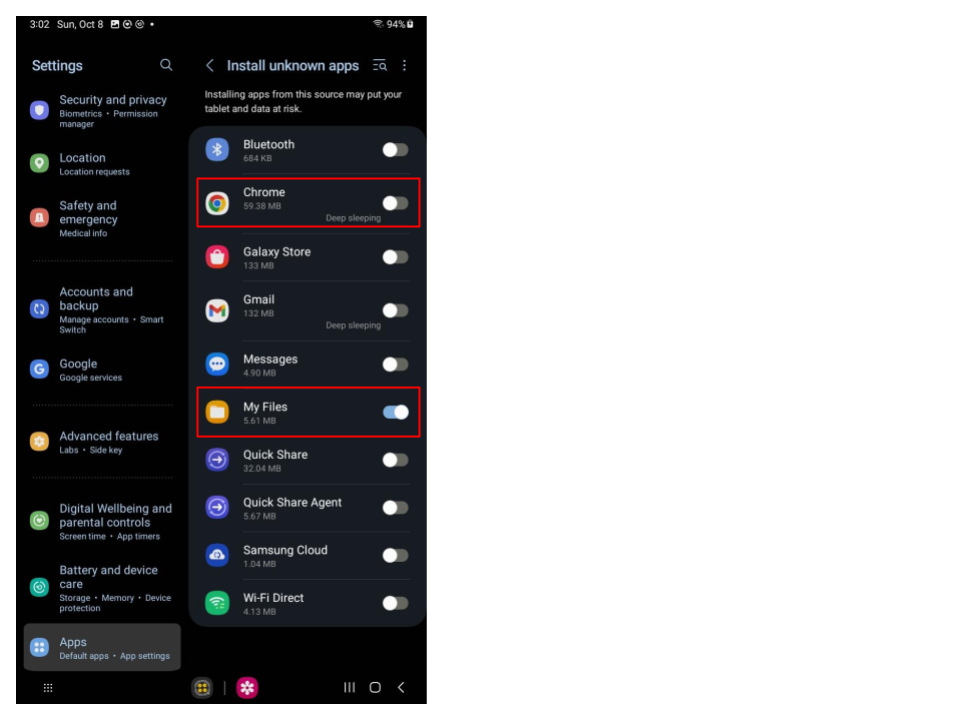
Select “My Files” from list of suggestions, telling Android it’s ok to install apps that are stored locally on your device. We recommend downloading APK file to your local storage and installing from these.
Allow MediX to listen to on-board microphone (Step 2/2)
When you connect your OR equipment’s video feed to your Android device, it’ll try to listen to voice commands from that source. Of course, there’s no audio source and hence you need to configure your Android Device to use on-board microphone/bluetooth.
Enable Developer Mode
- Go to Settings > About Tablet (or About Phone).
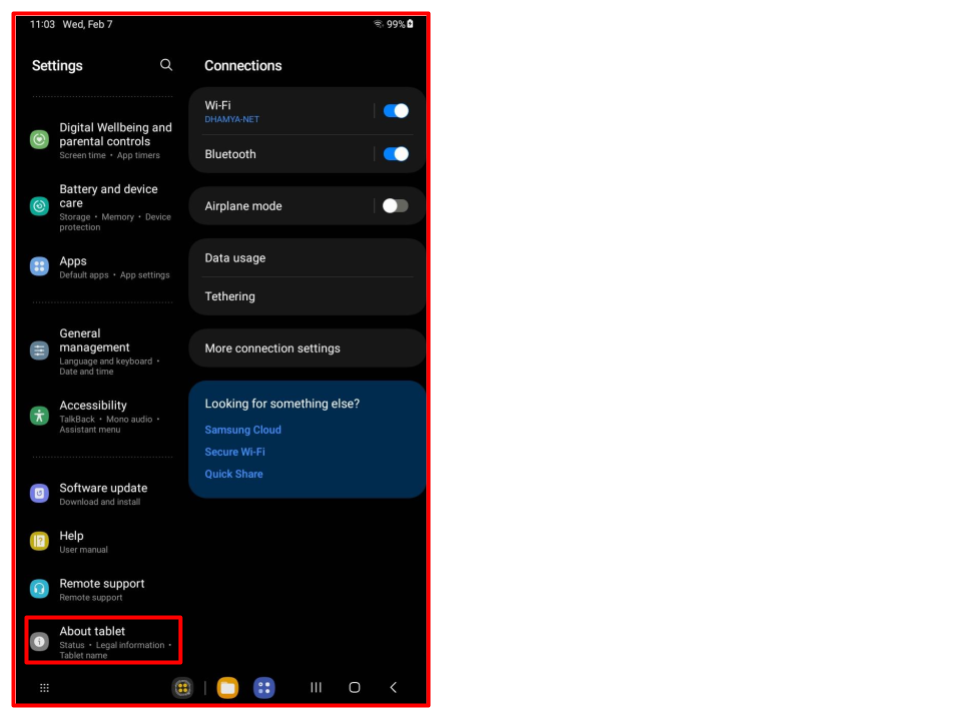
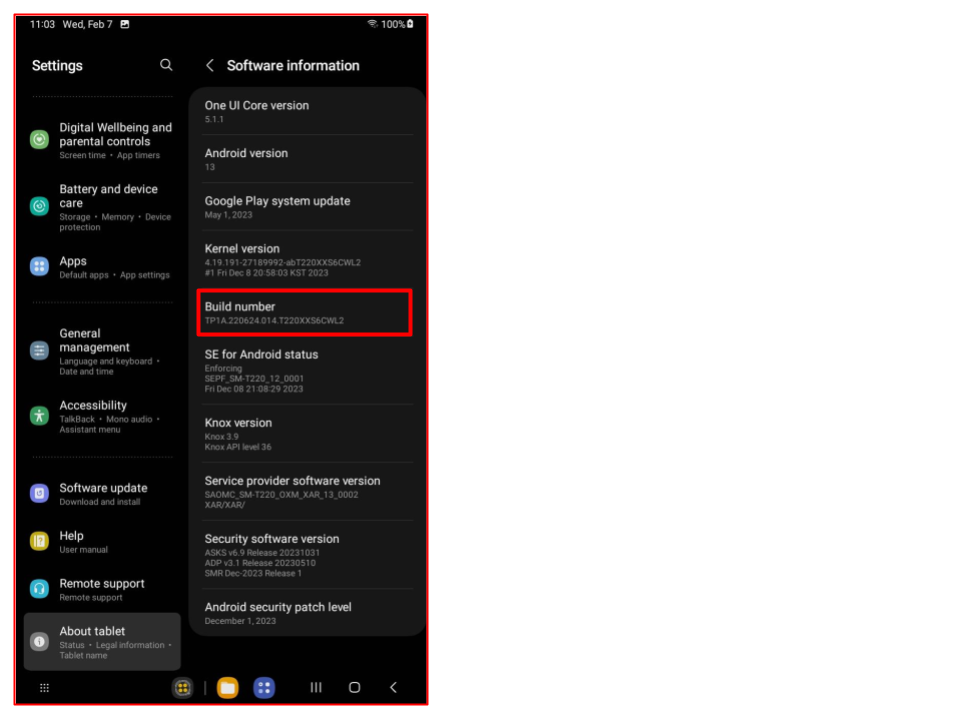
- Tap on “Software Information”, locate item called “Build number”.
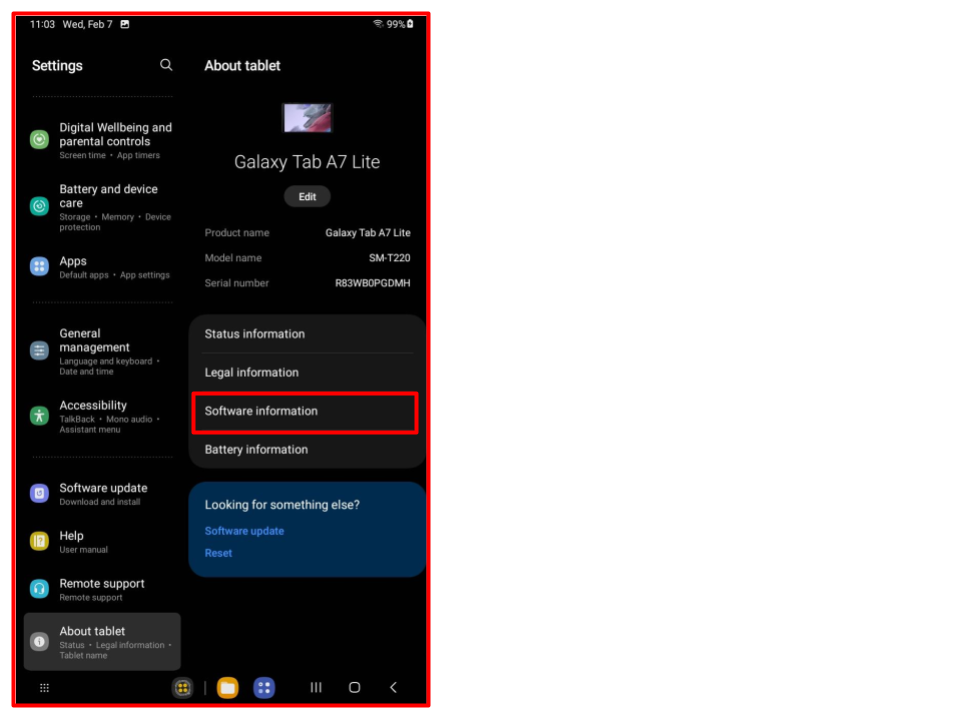
- Tap the “Build number” until you see a message “You are now a developer!” (you will need to tap around 7 or 8 times)
- Navigate to Settings > Developer options to access advanced options.
Disable USB audio routing
- Go to Settings and Search for “disable USB Audio routing”, once you find the seting, tap to toggle.
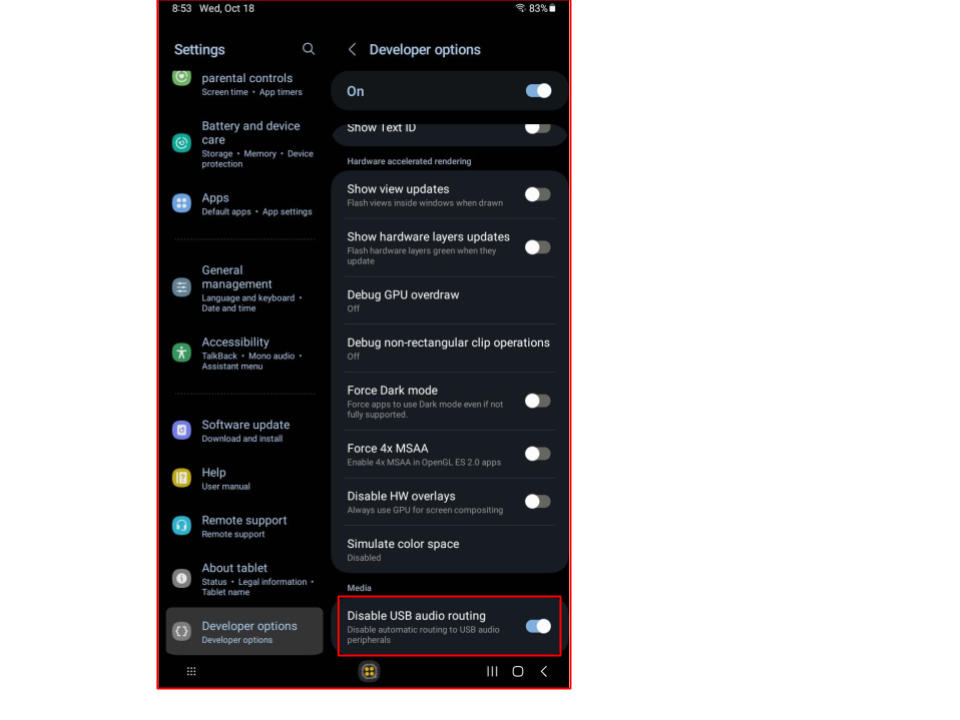
& that’s it, you can now proceed to install MediX on your Android device.